
How to Set Up a POS System for a Restaurant
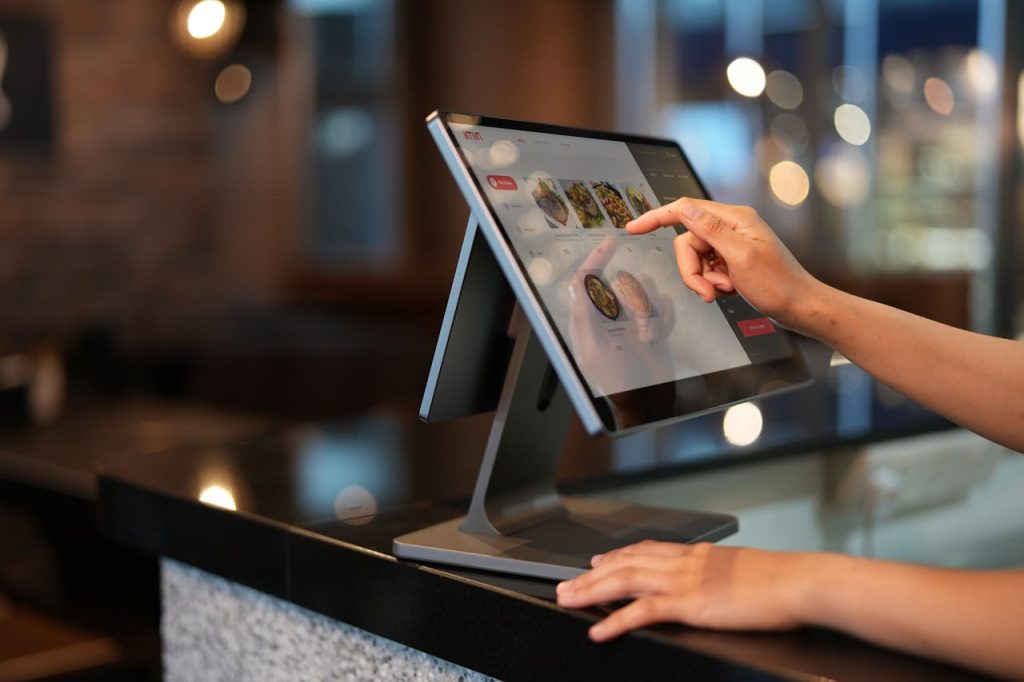
A restaurant POS system is more than a cash register — it is the operational backbone of your front-of-house and kitchen. The right setup connects order entry, payment processing, kitchen communication, and sales reporting into a single workflow. The wrong setup creates bottlenecks, errors, and equipment that does not hold up in a demanding kitchen environment.
This guide walks through every component of a restaurant POS system, explains what each piece does and why it matters, and covers how to make the right choices for your type of service — whether you run a quick-service counter, a full-service dining room, or something in between. It is written for Canadian restaurant owners and operators who are setting up a new system, upgrading aging hardware, or opening a new location.
Here is what we cover:
POSRG can help with your POS setup
The right hardware, expert installation, and reliable support — all from one team.
Understanding the Restaurant POS Ecosystem
A restaurant POS system is a network of connected hardware components, each serving a specific role in the order-to-payment process. No single device does everything — the terminal, the payment machine, the kitchen display, and the printers all work together as a system. Understanding how these pieces connect helps you make better decisions about what you need and where it goes.
The typical flow in a restaurant POS system:
- A server or cashier enters an order at the POS terminal
- The order transmits to the kitchen display system (KDS) or kitchen printer in real time
- The kitchen prepares the order and marks it complete on the KDS
- When the customer pays, the terminal communicates with the payment terminal to process the transaction
- A receipt printer produces the customer receipt
- All transaction data feeds into the back-office system for reporting, inventory, and sales tracking
In quick-service formats, customers may place their own orders at a self-serve kiosk, which sends orders directly to the kitchen. In full-service formats, servers may use mobile handheld devices to enter orders tableside. The core flow remains the same — the hardware just changes based on your service model.
The POS Terminal
The POS terminal is the central computer of your system. It runs your POS software, displays the order interface for staff, and connects to all your other hardware components. In most restaurant setups, the terminal is an all-in-one unit — meaning the computer, touchscreen display, and often a rear customer-facing screen are integrated into a single device. This reduces cable clutter, saves counter space, and simplifies setup.
For sit-down restaurants, terminals are typically mounted at the bar or at server stations along the floor. For quick-service restaurants, they sit at the front counter where cashiers take orders. The number of terminals you need depends on your service volume and layout — a busy restaurant with long queues at a single counter station is losing money if it is not running enough lanes.
When choosing a terminal, consider your software’s hardware requirements, the warranty terms offered by the manufacturer, and whether your POS hardware supplier is an authorized service centre for that terminal. Authorized service means faster repairs and warranty coverage — factors that matter when a failed terminal takes a lane out of service during a dinner rush. Warranties from major manufacturers range from 1 to 5 years depending on the brand and product tier.
Payment Terminals
The payment terminal is the device customers use to tap, swipe, or insert their card to pay. It connects to the POS terminal and processes the transaction through your payment processor. Each payment terminal manufacturer is certified with specific payment processors, which affects your transaction fee structure.
In full-service restaurants, wireless payment terminals are standard. Servers bring the device to the table so customers pay without leaving their seat — this is the norm in Canadian dining. Countertop terminals are used at quick-service and takeout operations where customers approach the register to pay.
One important consideration: the payment terminal you choose determines which processors you can use, and different processors charge different rates. If you are setting up a new system, evaluate your terminal choice and processor together rather than separately. The ongoing transaction fee savings from a better-matched processor can outweigh a hardware price difference over a year or two of operations.
Kitchen Communication: KDS and Kitchen Printers
Getting orders from the front of house to the kitchen accurately and quickly is one of the most operationally important functions of a restaurant POS system. There are two hardware approaches: a Kitchen Display System (KDS) that shows orders on a screen, and impact printers that print physical kitchen tickets. Many restaurants use both.
Kitchen Display Systems (KDS)
A KDS is a screen mounted in the kitchen — typically above or near the cook line — that displays orders in real time as they are entered at the terminal. Orders appear broken down by item and modifier, can be organized by course or prep station, and are marked complete by kitchen staff when ready. This replaces handwritten or printed tickets and gives the kitchen a live view of the full order queue.
The advantages of a KDS over printed tickets are speed, accuracy, and visibility. There is no ticket to lose, no handwriting to misread, and the expeditor can see the full status of every order on the line at once. KDS hardware can be configured with varying levels of processing power depending on order volume, and most units run on Android.
Kitchen Impact Printers
Kitchen printers produce a physical ticket that moves to the prep station or cook line with the order. The critical detail here is the printer technology: restaurant kitchens require impact printers, not thermal printers. Impact printers use ink and a print head that physically strikes the paper — this makes them unaffected by the heat produced by lamps and warming equipment. A thermal printer placed near a heat lamp will produce unreadable receipts or fail entirely.
Even restaurants that run a KDS often keep kitchen impact printers as a backup or for specific stations — a bar printer for drink tickets, or a cold prep station that is not within view of the main KDS.
Receipt and Label Printers
Receipt printers at the front of house use thermal technology — they apply heat to heat-sensitive paper to produce text, with no ink required. Thermal receipt printers are fast, low-maintenance, and compatible with virtually all restaurant POS software. A standard thermal receipt printer runs $300 to $500.
Label printers are a separate category used by quick-service and delivery-focused operations. When an order is ready for takeout, a label is printed and applied to the bag or container — confirming the order contents, the customer name, and any special instructions. This practice expanded significantly since 2020 and is now standard in pizza, coffee, and fast-casual operations.
Barcode Scanners
Not every restaurant needs a barcode scanner, but there are specific use cases where one is necessary. Quick-service restaurants with loyalty programs use scanners to read QR codes or barcodes from customer phones at the point of sale. Some restaurant operations that sell retail products — bottled sauces, merchandise, packaged goods — scan those items at the terminal the same way a retail store would.
Modern countertop scanners handle both traditional barcodes and 2D codes like QR, which covers all major loyalty app formats. Some all-in-one terminals also include a built-in scanner in the terminal head, which can handle light scanning volumes without a separate device.
Mobile Ordering Devices
Mobile ordering devices let servers take orders at the table and transmit them directly to the kitchen without returning to a terminal. This speeds up service, reduces errors from memory or handwritten notes, and frees up terminal stations from being used solely for order entry.
There are two categories of mobile device in restaurant use. Ruggedized handheld computers are purpose-built for enterprise use — they connect to the POS system over Wi-Fi and run the same ordering interface as the terminal. Consumer tablets are the other option, commonly used with iOS-based POS platforms. The iOS path requires iOS-compatible peripherals and limits some hardware choices at the front of house.
Self-Serve Ordering Kiosks
Self-serve ordering kiosks allow customers to place and pay for their own orders without interacting with a cashier. This is now standard in quick-service formats — major chains have deployed kiosks industry-wide, and independent quick-service operations increasingly follow suit. The business case is clear: kiosks reduce front-counter labour, handle peak-hour order volume that a single cashier cannot, and consistently produce higher average order values than counter orders because customers browse at their own pace.
A kiosk is essentially an all-in-one terminal in a floor-standing or wall-mounted enclosure, with a customer-facing interface and an integrated payment terminal. Kiosk installation involves more planning than a standard terminal. The physical footprint — how large the unit is and where it stands relative to the counter and queue — needs to be worked out before hardware is ordered. Electrical, network connectivity, and mounting or stand selection are all part of the installation scope. Most kiosk deployments require on-site installation by experienced technicians.
Back Office and Reporting
The back office is where your POS data turns into business intelligence. Most restaurant POS software includes a management dashboard that tracks sales by item, time of day, and server — giving you the information you need to manage labour, adjust the menu, and identify your highest-margin items. This interface typically runs on a back-office PC or through a web-based dashboard accessible from any device.
For restaurants that manage employee scheduling and time tracking through their POS system, the back-office computer serves as the employee clock-in station as well. A standard Windows-based all-in-one or desktop PC is sufficient for most restaurant back-office functions — specialized POS hardware is not necessary here.
Choosing Software and Matching Hardware
In most cases, restaurant operators choose their software before they start shopping for hardware — and this is the right sequence. Software determines your workflow, your menu structure, your reporting, and your integration with delivery platforms and loyalty programs. Hardware should fit the software, not the other way around.
What matters most in hardware-software matching is the operating system. Software built for Windows runs on Windows-based all-in-one terminals. Software built for iOS requires Apple hardware at the terminal and iOS-compatible peripherals only. Software built for Android runs on Android-based terminals. Always confirm which operating systems your software supports before purchasing hardware.
Also confirm peripheral compatibility — not just terminal compatibility. A software platform may support a particular terminal but have a short list of approved receipt printers and scanners. Buying an unsupported peripheral creates integration problems that are time-consuming to resolve.
Installation and Setup
Installing a restaurant POS system is a project, not a plug-and-play event. At minimum, you need to run power and network cabling to each terminal station, configure the software on each device, establish communication between terminals and kitchen hardware, and test the full order flow before service begins. For kiosk deployments, self-serve setups, or multi-lane configurations, the installation scope grows significantly.
Steps in a typical restaurant POS installation:
- Site survey — assess counter space, power outlets, network infrastructure, and kitchen layout before ordering hardware
- Hardware staging — configure and test all devices at a service facility before they arrive at your location
- Physical installation — mount terminals, run cabling, install KDS screens and kitchen printers in position
- Software configuration — load your menu, set up tax rates, payment integrations, and user accounts
- End-to-end testing — run test orders through the full system before going live
- Staff training — your team needs to know the system before the first real service
Kitchen display system placement deserves particular attention. A KDS mounted out of the cook line’s sightline defeats its purpose. Impact printer placement near heat equipment needs to account for heat and grease exposure. These are installation details that affect daily operations for years.
What Does a Restaurant POS System Cost?
A single-lane restaurant POS setup — one terminal with all peripherals — costs between $3,000 and $5,000 in hardware. Most sit-down restaurants need at least two lanes, putting the base hardware cost between $6,000 and $10,000. Each KDS unit adds $3,000 to $5,000 to the total. Self-serve kiosks are a further addition per unit. Software licensing fees sit on top of hardware costs and vary by platform.
For restaurants that cannot fund the full upfront cost, lease-to-own financing spreads hardware costs into monthly payments. Certified refurbished hardware from major manufacturers can reduce per-unit costs by 30% to 60%, making it a practical option for secondary stations or budget-conscious operators.
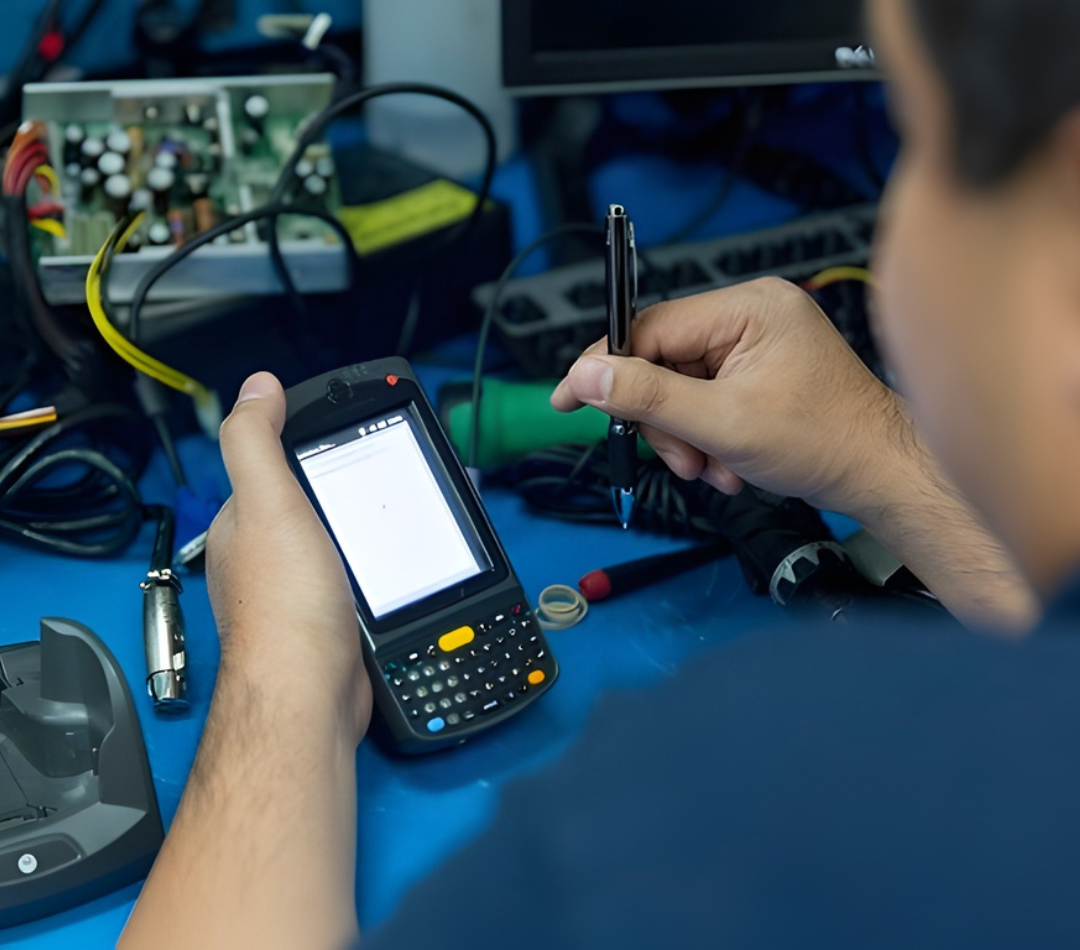
POSRG Can Help Upgrade or Repair Your POS System
Setting up a restaurant POS system involves more decisions than most operators expect — and getting those decisions right from the start saves significant time, money, and frustration down the road. POSRG supplies and services restaurant POS hardware across Canada, from single-location operators to multi-site chains.
We carry terminals, KDS systems, printers, payment devices, and kiosk hardware from all major manufacturers, and we provide on-site installation and ongoing repair support. Call us at (905) 332-8809 or email inquiries@posrg.ca for a free consultation.